Windows Unprivileged - WupService
Updated 2026-06-20: WupService now sets a user name and password and SeServiceLogonRight for the user during installation.
In a previous article Privileged Scheduled Task I described a complicated way to emulate the Unix sudo command in Windows using JEA and scheduled tasks.
Since then I have been thinking, there must be an even more complicated way to do this.
I thought about it and found a perhaps better way to implement the same idea. This solution does not use a local admin account but the calling user’s account and it’s not based on a scheduled task but on a service.
Note that absolutely none of this is authoritative or directly based on relevant documentation. It’s mostly what I found and figured out and guessed and (in some cases) made up. Some of it may be wrong or dangerous or lead to disaster or confusion. I am not taking responsibility here for anything. Especially not for granting SeTcbPrivilege to a user account! Read and act on it at your own peril!
You can download the required Windows service here:
WupService x64 for 64 bit x86 and WupService arm64 for 64 bit ARM
These are in development phase and not finished.
How to use
The service runs using the target user’s account and a service SID that has all the desired group memberships and privileged required by the program to be launched plus SeTcbPrivilege and SeAssignPrimaryTokenPrivilege. (SeTcbPrivilege should not generally be held by any account except SYSTEM and will not be assigned to the privileged program ultimately started.)
For each control from 128 to 255 (see ControlService) one program can be assigned. (The assignment can be done by a function in a JEA configuration, but this is left as an exercise to the reader.)
Create a registry key HKLM:\SOFTWARE\AB\WUPService\WUPS_StartName\ where WUPS_StartName is the user name of the service.
Create subkeys for each control you want to assign to a program. The default value of the subkey is the path to the program image.
In this example, cmd.exe is the program to be started. The service will be named benoit. The job process limit, a mechanism to avoid privileged daughter processes being started, by default 1, will be set to 0 here to allow daughter processes.
PS C:\> New-Item HKLM:\SOFTWARE\AB\WUPService\benoit\128 -Force

    Hive: HKEY_LOCAL_MACHINE\SOFTWARE\AB\WUPService\benoit

Name                           Property
----                           --------
128

PS C:\> Set-ItemProperty HKLM:\SOFTWARE\AB\WUPService\benoit\128 "(Default)" "C:\Windows\System32\cmd.exe"
PS C:\> Set-ItemProperty HKLM:\SOFTWARE\AB\WUPService\benoit\128 processlimit 0
PS C:\> Get-ItemProperty HKLM:\SOFTWARE\AB\WUPService\benoit\128

processlimit : 0
(default)    : C:\Windows\System32\cmd.exe
PSPath       : Microsoft.PowerShell.Core\Registry::HKEY_LOCAL_MACHINE\SOFTWARE\AB\WUPService\benoit\128
PSParentPath : Microsoft.PowerShell.Core\Registry::HKEY_LOCAL_MACHINE\SOFTWARE\AB\WUPService\benoit
PSChildName  : 128
PSDrive      : HKLM
PSProvider   : Microsoft.PowerShell.Core\Registry

PS C:\>
Then, install the service. It will automatically assign a service sid and assign the service sid to the Administrators group and the required privileges SeAssignPrimaryToken and SeTcbPrivilege. (Note that SeTcbPrivilege should not usually be assigned to any account! Do this at your own peril.)
PS C:\WupService> .\WUPS.exe add benoit SeServiceLogonRight
Probably added privilege [SeServiceLogonRight] to account [benoit].
 PS C:\WupService> .\WUPS.exe
Usage:
WUPS add|remove user privilege
WUPS windowstationpermission user
WUPS install servicename [username [password]]
WUPS uninstall servicename
PS C:\WupService> .\WUPS.exe install benoit benoit BenoitsPassword
Installed service [benoit] with image path [C:\WupService\WUPS.exe] as [.\benoit].
Added service sid to service.
Added service sid to Administrators group.
Granted SeTcbPrivilege and SeAssignPrimaryTokenPrivilege to service sid.
PS C:\WupService> Start-Service benoit
Note that if you install the service without a user name, it will be installed running under LocalSystem and use session 1 for the started programs. To allow users to install the service with their own user name and password, you can create a JEA configuration that allows them to run their service image as superuser. Or you can install the service using their user name but a false password and let them change the passsword of their service using JEA. (But do not give the user full control of the service to change the password directly!)
To allow every member of the local group Wups to install their own version of the service, create this JEA configuration:
PS C:\Program Files\WindowsPowerShell\Modules\JEA> New-LocalGroup Wups

Name Description
---- -----------
Wups

PS C:\Program Files\WindowsPowerShell\Modules\JEA> New-PSSessionConfigurationFile -Path Wups.pssc -SessionType RestrictedRemoteServer -RunAsVirtualAccount -RoleDefinitions @{'Wups'=@{'RoleCapabilities'='Wups'}}
PS C:\Program Files\WindowsPowerShell\Modules\JEA> New-PSRoleCapabilityFile -Path .\RoleCapabilities\Wups.psrc -VisibleExternalCommands 'C:\WupService\WUPS.exe'
PS C:\Program Files\WindowsPowerShell\Modules\JEA> Register-PSSessionConfiguration -Name Wups -Path .\Wups.pssc
WARNING: Register-PSSessionConfiguration may need to restart the WinRM service if a configuration using this name has recently been unregistered, certain system data structures may still be cached. In that case, a restart of WinRM may be required.
All WinRM sessions connected to Windows PowerShell session configurations, such as Microsoft.PowerShell and session configurations that are created with the Register-PSSessionConfiguration cmdlet, are disconnected.

   WSManConfig: Microsoft.WSMan.Management\WSMan::localhost\Plugin

Type            Keys                                Name
----            ----                                ----
Container       {Name=Wups}                         Wups
WARNING: Set-PSSessionConfiguration may need to restart the WinRM service if a configuration using this name has recently been unregistered, certain system data structures may still be cached. In that case, a restart of WinRM may be required.
All WinRM sessions connected to Windows PowerShell session configurations, such as Microsoft.PowerShell and session configurations that are created with the Register-PSSessionConfiguration cmdlet, are disconnected.
WARNING: Register-PSSessionConfiguration may need to restart the WinRM service if a configuration using this name has recently been unregistered, certain system data structures may still be cached. In that case, a restart of WinRM may be required.
All WinRM sessions connected to Windows PowerShell session configurations, such as Microsoft.PowerShell and session configurations that are created with the Register-PSSessionConfiguration cmdlet, are disconnected.

PS C:\Program Files\WindowsPowerShell\Modules\JEA>
A member of the Wups group can now install the service for themselves (and it will start at next boot or whenever an administrator starts it):
PS C:\> whoami
achaemenes\benoit
PS C:\> $s=New-PSSession -ConfigurationName wups
PS C:\> Invoke-Command $s {C:\WupService\WUPS.exe}
Usage:
WUPS add|remove user privilege
WUPS windowstationpermission user
WUPS install servicename [username [password]]
WUPS uninstall servicename
PS C:\> Invoke-Command $s {C:\WupService\WUPS.exe install benoit benoit BenoitsSuperSecretPassword1}
Installed service [benoit] with image path [C:\WupService\WUPS.exe] running as [.\benoit].
Added service sid to service.
Added service sid to Administrators group.
Granted SeTcbPrivilege and SeAssignPrimaryTokenPrivilege to service sid.
PS C:\> sc.exe qc benoit
[SC] QueryServiceConfig SUCCESS

SERVICE_NAME: benoit
        TYPE               : 10  WIN32_OWN_PROCESS
        START_TYPE         : 2   AUTO_START
        ERROR_CONTROL      : 1   NORMAL
        BINARY_PATH_NAME   : C:\WupService\WUPS.exe
        LOAD_ORDER_GROUP   :
        TAG                : 0
        DISPLAY_NAME       : benoit
        DEPENDENCIES       :
        SERVICE_START_NAME : .\benoit
PS C:\> Remove-PSSession $s
PS C:\>
Also use eventcreate.exe to create the proper event source:
PS C:\WupService> eventcreate.exe /l application /so WupService /t information /id 99 /d foo
SUCCESS: An event of type 'information' was created in the 'application' log with 'WupService' as the source.
Now that the service is installed and cmd.exe is configured for control 128, user benoit can start cmd.exe from the service using sc.exe. (This can be done by a wrapper script, of course.)
For many programs you first need to grant permissions to your window station (session) to yourself:
PS C:\WupService> .\WUPS.exe windowstationpermission benoit
Probably gave access to current window station to account [benoit].
And then you can try it out:
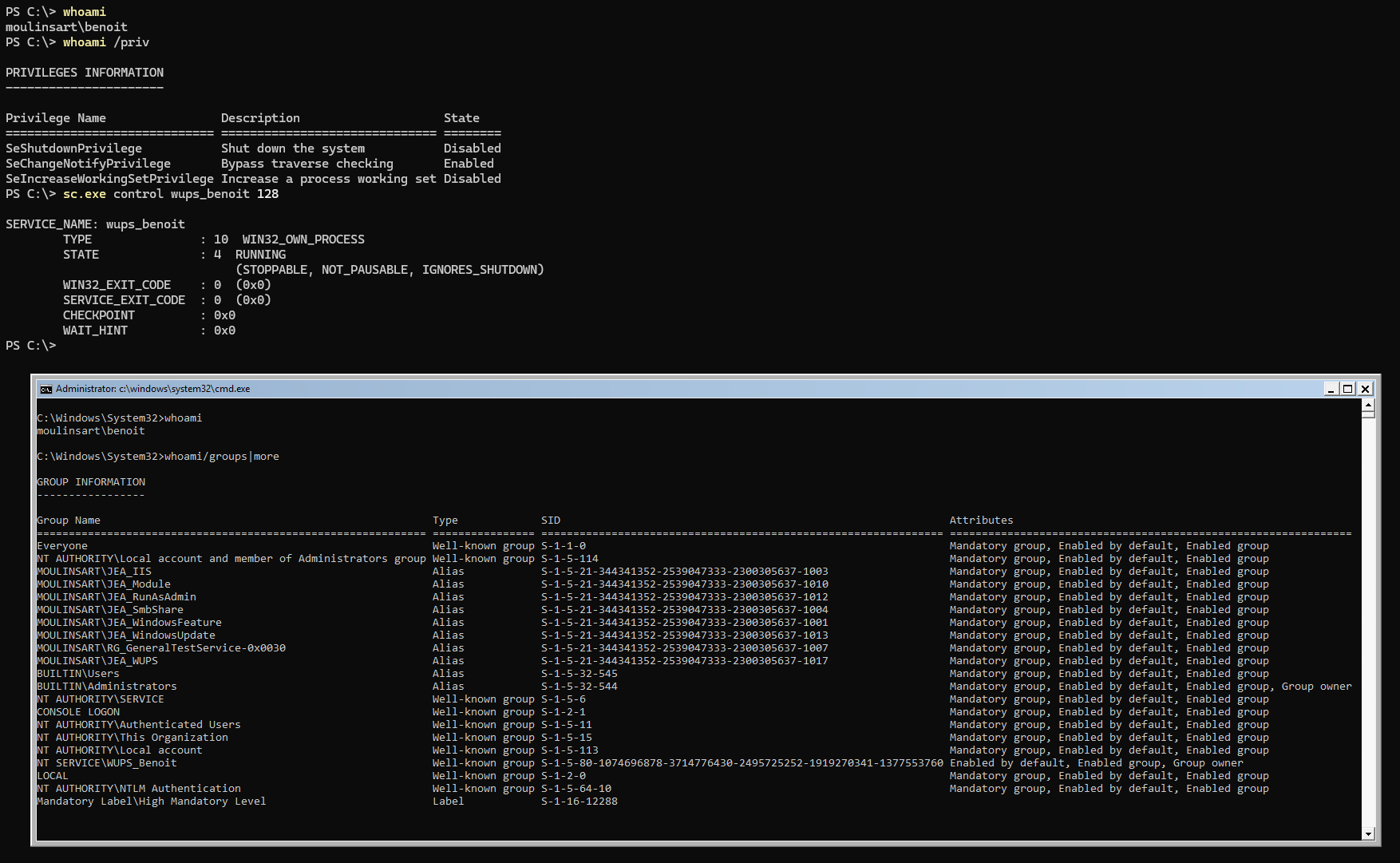
Note that the cmd.exe is running in an unthemed window and has all of user benoit’s group memberships plus Administrators and NT Service\benoit.
It has the latter group because it is a daughter process of the WUPS_Benoit service and it has the former group because NT Service\benoit is a member of Administrators.
If the privileged program requires any other group memberships and privileges, just assign them to NT Service\benoit and the privileged program will have those groups and privileges.
How it works
The service reacts to controls.
When a control is received (should be between 128 and 255 for this to work) it will read the appropriate registry key’s default value.
If it finds a path there it will
1) get the current process token (which will be user benoit’s token)
HANDLE hProcess = GetCurrentProcess();
HANDLE hPrimToken = NULL;
ok = OpenProcessToken(hProcess, TOKEN_ALL_ACCESS, &hPrimToken);
2) create a duplicate of the token, or rather create a restricted version of the token without SeTcbPrivilege
HANDLE hDupToken = NULL;
TOKEN_PRIVILEGES privs;
LUID luid;
ok = LookupPrivilegeValue(NULL, L"SeTcbPrivilege", &luid);
privs.PrivilegeCount = 1;
privs.Privileges[0].Luid = luid;
ok = CreateRestrictedToken(hPrimToken, 0, 0, NULL, privs.PrivilegeCount, privs.Privileges, 0, NULL, &hDupToken);
3) find the calling user’s session (actually finds the first session using the same user name)
DWORD cchCurrentUserName = UNLEN + 1;
LPWSTR sCurrentUserName = GlobalAlloc(0, cchCurrentUserName * sizeof(WCHAR));
ok = GetUserName(sCurrentUserName, &cchCurrentUserName);

DWORD sessionid = 0;
PWTS_SESSION_INFO aSessionInfo = NULL;
DWORD cSessionInfo = 0;
ok = WTSEnumerateSessions(WTS_CURRENT_SERVER_HANDLE, 0, 1, &aSessionInfo, &cSessionInfo);
for (DWORD i = 0; i < cSessionInfo; i++) {
    LPWSTR sSessionUserName = NULL;
    DWORD cbSessionUserName = 0;
    ok = WTSQuerySessionInformation(WTS_CURRENT_SERVER_HANDLE, aSessionInfo[i].SessionId, WTSUserName, &sSessionUserName, &cbSessionUserName);
    if (0 == wcscmp(sSessionUserName, sCurrentUserName)) {
        sessionid = aSessionInfo[i].SessionId;
        break;
    }//if
}//for
4) change the token’s session id to the calling user’s session (this requires SeTcbPrivilege)
EnablePrivilege(L"SeTcbPrivilege");
ok = SetTokenInformation(hDupToken, TokenSessionId, &sessionid, sizeof(DWORD));
5) create a suspended process using this duplicated/restricted token (this requires SeAssignPrimaryTokenPrivilege)
EnablePrivilege(L"SeAssignPrimaryTokenPrivilege");
PROCESS_INFORMATION pi;
STARTUPINFOW si;
si.cb = sizeof(STARTUPINFOW);
ZeroMemory(&si, si.cb);
ZeroMemory(&pi, sizeof(PROCESS_INFORMATION));
ok = CreateProcessAsUserW(hDupToken, pathImage, NULL, NULL, NULL, FALSE, CREATE_SUSPENDED, NULL, NULL, &si, &pi);
6) configure a job object with a process limit and add the process to it
HANDLE hProcess = OpenProcess(PROCESS_ALL_ACCESS, FALSE, pi.dwProcessId);
HANDLE hJob = CreateJobObject(NULL, L"WupsJob");
JOBOBJECT_BASIC_LIMIT_INFORMATION limits;
limits.LimitFlags = JOB_OBJECT_LIMIT_ACTIVE_PROCESS;
limits.ActiveProcessLimit = processlimit;
ok = SetInformationJobObject(hJob, JobObjectBasicLimitInformation, &limits, sizeof(JOBOBJECT_BASIC_LIMIT_INFORMATION));
ok = AssignProcessToJobObject(hJob, hProcess);
7) and resume the process’ main thread.
status = ResumeThread(pi.hThread);The new process appears in the user’s session (or rather, in one of them) and will have the group NT Service\ServiceName as well as all groups and privileges of that group
(Note that the code examples lack even the most basic error checking and probably feature lots of type and indirection errors. I would not recommend anyone to use it like this. If you find bugs, let me know. I am sure there are a few many of those. Find the code for EnablePrivilege() somewhere in my github repositories.)
Registry configuration values
| Location | Value | Type | Description |
| User name subkey | default value | string | Path to image (like C:\Windows\System32\winver.exe) |
| User name subkey | processlimit | DWORD | If present and not 1 will allow the privileged process to launch daughter processes. Set to 0 to allow any number of daughter processes or any number to allow that number of daughter processes. The default value is 1 and won’t allow any daughter processes. |
Next: PostgreSQL